
Android smartphones sometimes display annoying messages such as “Services keeps stopping,” “Services stopped working,” or “Services has stopped.” These errors can interrupt normal phone usage and make it difficult to use certain applications.
If you are experiencing this problem, don’t worry. There are several troubleshooting steps you can follow to understand and resolve common Services-related issues.
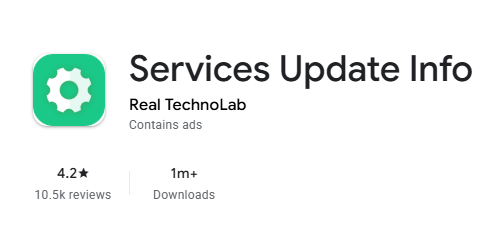
In this guide, we will explain possible causes and simple solutions. You can also use Services Update & Fix – Android, an Android troubleshooting app that provides helpful solution instructions and device information.
Why Does the Services Keeps Stopping Error Appear?
There can be several reasons why an Android phone displays Services-related error messages:
- Temporary application cache problems.
- Outdated applications or system components.
- Software compatibility issues.
- Incomplete application updates.
- Temporary Android system errors.
- Device-specific software problems.
The exact cause can vary depending on your smartphone model and Android version.
5 Ways to Troubleshoot Services Stopped Working Errors
1. Restart Your Android Smartphone
A simple restart can sometimes resolve temporary system problems.
- Press and hold your phone’s Power button.
- Select Restart.
- Wait for the phone to start.
- Check whether the error appears again.
2. Clear the Affected App Cache
Cached files can sometimes become corrupted and cause application problems.
Follow these steps:
- Open your phone’s Settings.
- Navigate to Apps or App Management.
- Find the application mentioned in the error.
- Open its App Info screen.
- Select Storage.
- Tap Clear Cache, if available.
Restart your phone and check the result.
3. Check Application Updates
Using an outdated application may sometimes cause compatibility problems.
- Open Google Play Store.
- Search for the affected application.
- Check for available updates.
- Install the latest version if available.
4. Check Android System Updates
Your smartphone may have pending software updates that include bug fixes and compatibility improvements.
Open Settings, find System Update or Software Update, and check whether a new version is available.
5. Reinstall Application Updates (If Available)
If the problem started after an application update, reinstalling updates may help.
For certain preinstalled applications, you may find an Uninstall Updates option in App Info.
Only use this option when appropriate for the affected application. Do not uninstall or disable important Android system components.
Get Step-by-Step Troubleshooting Instructions with Services Update & Fix – Android
Not sure which troubleshooting method to follow?
Services Update & Fix – Android is designed to help Android users understand Services-related problems through useful troubleshooting instructions and device information.
Instead of searching through multiple websites for possible solutions, users can explore helpful guidance directly inside the app.
What Does the App Offer?
- Helpful instructions for common Services-related problems.
- Guidance for troubleshooting Services stopped working errors.
- Useful Android device information.
- Easy-to-understand troubleshooting information.
- A simple interface for exploring available guidance.
Whether you are experiencing a Services error or simply want to check Android Services information, the app can help you find relevant instructions.
Download Services Update & Fix – Android
Get the app from Google Play:
Google Play: https://play.google.com/store/apps/details?id=com.update.serviceinfo.error2019
Frequently Asked Questions
1. What does Services keeps stopping mean?
It means an Android application or system component identified as Services has encountered an error and stopped unexpectedly.
2. How can I fix Services stopped working on Android?
Try restarting your device, clearing the affected app’s cache, checking for updates, and following the relevant troubleshooting instructions.
3. Can I fix Services errors without technical knowledge?
Many basic troubleshooting steps are easy to follow. Services Update & Fix – Android provides helpful instructions to guide users.
4. Does Services Update & Fix automatically repair Android system errors?
The app provides troubleshooting instructions and device information. Users follow the suggested steps on their own devices.
5. Where can I download Services Update & Fix – Android?
You can download it from the Google Play Store using the link provided in this article.
Final Thoughts
Services-related errors can be frustrating, especially when they repeatedly appear on your Android smartphone.
Understanding the possible causes and following the correct troubleshooting instructions can help you address these problems.
For helpful Services-related troubleshooting guidance and Android device information, try Services Update & Fix – Android, developed by RealTechnoLab.
Download today and explore easy-to-follow Android troubleshooting instructions.
About RealTechnoLab
RealTechnoLab develops useful technology products and applications designed to make everyday digital tasks easier.